Security & trust

Control who can act, how information is protected and what evidence remains.

Your company. Your encryption policy.

Per-company encryption follows approved document policy, permissions and key-custodian controls.

Independent key custody

Configured AWS KMS-backed keys require independent approval. Administration and custody remain separate.

Evidence for allowed and denied access

Append-only document history records actions, reasons and copy trace IDs; tamper-evident audits retain changes and exports.

Read-only means read-only

Permission checks and two-person controls protect sensitive decisions. Downloaded copies cannot be recalled.

Separate encrypted daily backups

A company archive password enables daily company-scoped backups with 30-day retention, subject to authorised exclusions. S3 Object Lock is coming soon, not connected.

Governed integration boundaries

Configured destinations and provider errors are checked on the server. DNS checks are not a guarantee of pinned egress or redirect refusal.

Evidence supports your review

An OWASP ASVS L2 evidence pack supports assessment. No certification or completed external penetration test is claimed.

Trust our seal

Documents sealed by Vaulteer carry an organizational seal. Check the certificate fingerprint and issuer before choosing to trust its root in Adobe Reader.

This organizational seal provides evidence of origin and integrity; it does not establish legal qualification or regulatory certification.

Organizational root certificate

Valid: 10/3/2026 – 10/2/2036

Download root certificate (.cer)

Fingerprints

SHA-256: C8:98:2A:AB:55:6D:51:C9:D6:45:FE:22:10:B7:DE:68:3E:38:F0:F6:44:F9:40:C4:A5:D4:8A:0C:0F:50:4A:00

SHA-1: DE:EA:8A:45:0D:8A:35:81:43:0A:1E:1C:C2:D2:D9:BF:ED:11:BF:E3

Revocation list (CRL)

Adobe Acrobat Reader

  1. Download the root certificate above.
  2. Open Adobe Acrobat Reader and go to Edit > Preferences (macOS: Acrobat Reader > Settings) > Signatures.
  3. Next to Identities & Trusted Certificates, click More…
  4. Choose Trusted Certificates, then Import, and select the downloaded root certificate.
  5. Select the imported root certificate, click Edit Trust, and tick “Use this certificate as a trusted root” and “Certified documents”.
  6. Click OK. Reopen the sealed PDF — the signature panel shows the seal as valid.
  7. Before trusting, check that the SHA-256 fingerprint shown in Adobe matches the one on this page.

Windows

Double-click the .cer file > Install Certificate > Current User > Place all certificates in: Trusted Root Certification Authorities. (Adobe Reader uses its own list, so also follow the Adobe steps.)

macOS

Double-click the .cer file to add it to Keychain Access, open the downloaded root certificate, expand Trust and set “When using this certificate” to Always Trust.

Protection through the lifecycle

How Vaulteer protects your documents

  1. 01

    Classify

    Label sensitive records.

  2. 02

    Control

    Set rights and conditions.

  3. 03

    Watermark

    Trace viewed and issued copies.

  4. 04

    Share

    Invite named recipients.

  5. 05

    Revoke

    Stop future access.

  6. 06

    Audit

    Retain actions and reasons.

Revocation stops future access. Downloaded copies cannot be recalled; recorded copies remain traceable by their watermark ID.

Security is core. Not an industry add-on.

Control that stays with the record.

01

Document Security

Give people the access they need—not a copy they do not.

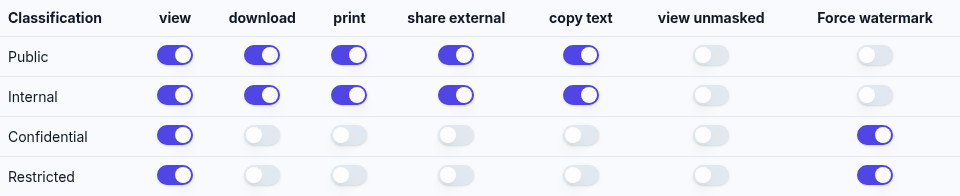
  • Separate view, download, print, external-share and copy rights by classification, role or user, with folder inheritance and document overrides.
  • A secure canvas viewer carries name, email, company, IP and company-local time. Server-stamped PDF downloads and prints add a unique copy trace ID.
  • Viewer controls reduce casual copying; no browser can prevent screenshots or recall an already downloaded copy.
02

Access policies

The right person. The right place. The right time.

  • Apply approved hours, office-network IP restrictions, approved devices and document validity dates.
  • Reasoned break-glass access leaves audit evidence. A policy simulator checks a user, document, time and IP before policy changes.
03

Secure Share

Send a controlled invitation, not an unrestricted attachment.

  • Named external recipients verify an email one-time code each session. Set view, download and print rights, expiry and open limits; require approval for selected classifications.
  • Track opens, last access and recipient status. Revocation blocks the next authorised request; “sent to wrong person” recovery records an incident and notifies the owner.
04

Revocation & offboarding

End access while keeping the evidence.

  • Confirmed actions revoke a document’s external shares and non-owner grants, offboard a user or end access across a project, with counts before confirmation.
  • Transfer ownership and eligible shares when offboarding. Already downloaded copies cannot be recalled; recorded copies remain traceable by watermark ID.
05

Classification & masking

Make sensitive information visible to policy—not to everyone.

  • Configure labels and detectors for supported national-ID, tax-ID and phone formats, Luhn-valid cards, configurable account patterns, email and custom keywords. Format coverage is configurable, not universal identity verification.
  • After approved OCR/text extraction, rules can apply rights, force watermarks and request per-file encryption, subject to existing policy and key-custodian approval.
  • Users without unmasked rights receive a masked rendition where detections and positions are available. Missing required masking evidence blocks access; only detector types and counts are retained.
06

Security Risk Center

Turn document activity into a focused review queue.

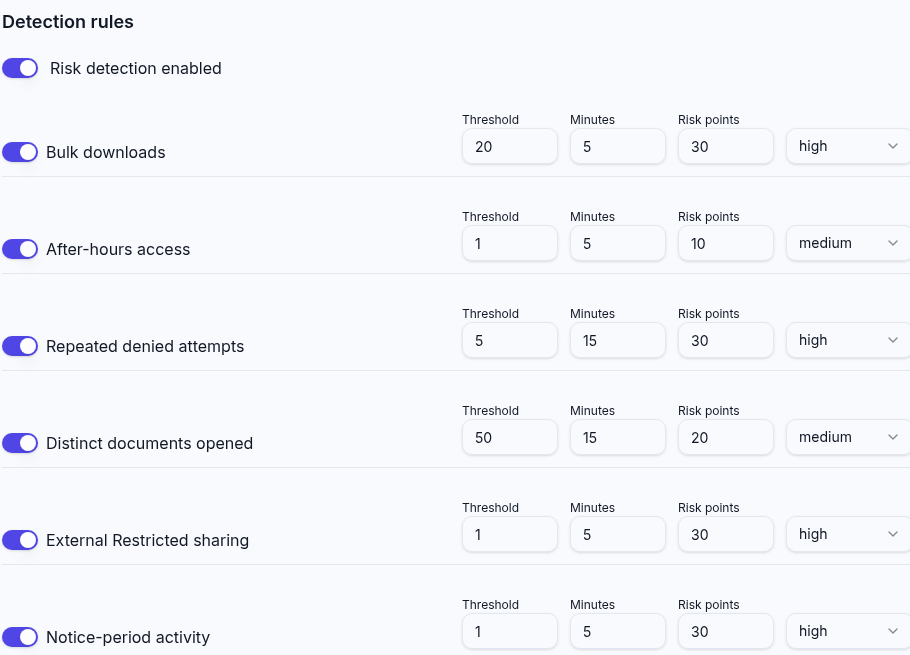
  • Company-configurable rules evaluate bulk downloads, after-hours access, repeated denials, unusual document opens, Restricted sharing and notice-period activity every 15 minutes.
  • Review decaying user risk scores, findings by department and event timelines. High-severity alerts target designated security officers; delivery requires configured services.
07

Retention & recovery

Preserve the original. Restore without rewriting history.

  • Re-upload and restore append new versions. History shows who, when and size; retention schedules and reasoned document/folder legal holds block deletion and version pruning.
  • A configurable recycle bin and administrator re-authentication govern permanent deletion. Retained originals and legal holds remain protected.
  • Coming soon: an S3 destination with Object Lock retention. Configuration only—not connected, and not an active immutable backup service.
08

Company-controlled platform

Your workspace, your providers, your evidence.

  • Daily per-company encrypted backups keep companies separate and retain archives for 30 days. An archive password is required; authorised exclusions and governed restore apply.
  • Bring your own Claude or Gemini keys. AI usage is billed by your AI provider to your own account, with company usage history and per-user/company request limits. OCR and disclosure policies still apply.
  • VisionX-signed editions and add-ons support online checks and offline license files; enforcement remains off during the current rollout. SSO follows the configured identity provider, with company approval required.
  • Hardened exports neutralise spreadsheet formulas; uploads validate allowed content and size. File and email limits vary by channel.

Features shown reflect the prepared November 2026 release, not a claim of deployment to every workspace. Availability depends on approved policies, connected providers and licensed features. S3 immutable backup is coming soon; licensing enforcement remains off during rollout. Usage quantities are set by the signed license; no public price is quoted.

Inside Vaulteer

Real controls. Clear decisions.

Real app screens from an isolated TEST workspace. Fictional configuration only; no customer records.

Vaulteer classification rights matrix showing separate view, download, print, share, copy and unmasked permissions
Classification-based rights and forced watermarks.
Vaulteer risk rules for bulk downloads, after-hours access, denied attempts, unusual opens, Restricted sharing and notice-period activity
Company-configurable thresholds, time windows and risk points.

Choose your edition

One security foundation. Room to grow.

Vaulteer edition feature comparison
CapabilityStarterProfessionalEnterprise
Core security, masking, risk review & retentionIncludedIncludedIncluded
Users, audit, backups & settingsIncludedIncludedIncluded
Documents, workflows & e-signaturesIncludedIncludedIncluded
Board secretarialIncludedIncludedIncluded
Contract renewals, notice reminders & obligation alertsIncludedIncludedIncluded
Banking, corporate & Pharma industry packsNot includedLicensed add-onsLicensed add-ons
On-premises, key custody & dedicated supportNot includedNot includedIncluded
Customer-owned Claude / Gemini keysFor licensed AI featuresFor licensed AI featuresFor licensed AI features
S3 immutable backupComing soonComing soonComing soon

Industry packs require both Professional-or-higher industry access and the relevant signed add-on. AI billing stays with your provider; AI features retain their licensed permissions. User quantities and other limits follow your license. Enforcement remains off during rollout.