Vaulteer knowledge library
Vaulteer Admin Guide
Purpose, practical steps and important limits for your daily work.
November 2026 edition · Real fictional Sandbox screenshots · Newly built features await publication; S3 immutable backup is coming soon.
Settings → Document Security
Company timezone, watermarks and rights
Purpose
Define independent default document rights and traceable copy rules.
Steps
- As a company administrator open Document Security.
- Search Company timezone for the correct IANA zone and select it.
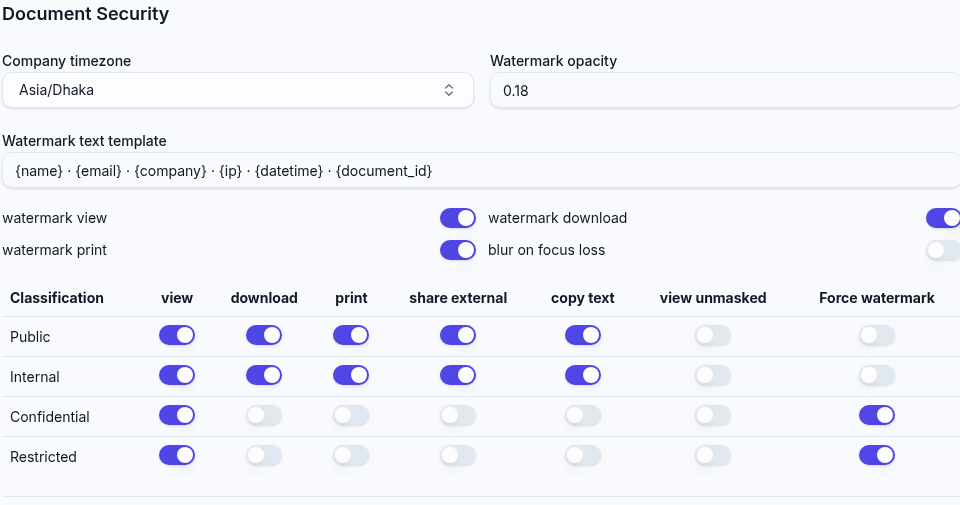
- Set watermark opacity and template; keep required identity fields. Toggle view, download, print and optional blur on focus loss.
- In the classification grid set view, download, print, share external, copy text and view unmasked independently; enable Force watermark where required.
- Choose Save document security and complete the change-request dialog if your company requires approval.
Settings → Document Security → Classification and masking
Classification, detectors and masking
Purpose
Apply sensitivity labels and protect detected fields while respecting existing OCR and encryption choices.
Steps
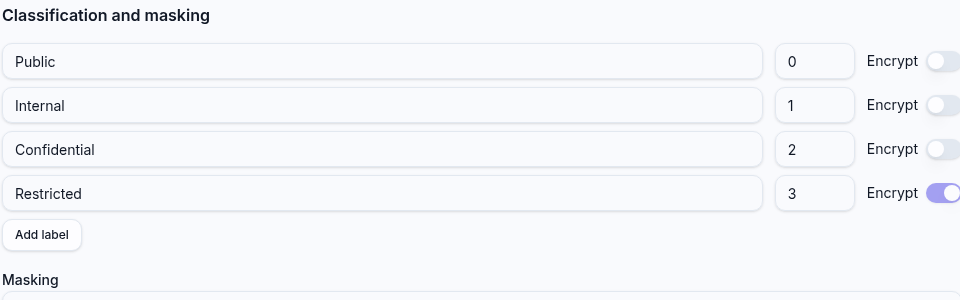
- Name the company labels and set their priority; use Add label when needed.
- Set encryption for appropriate labels; Restricted encryption remains mandatory.
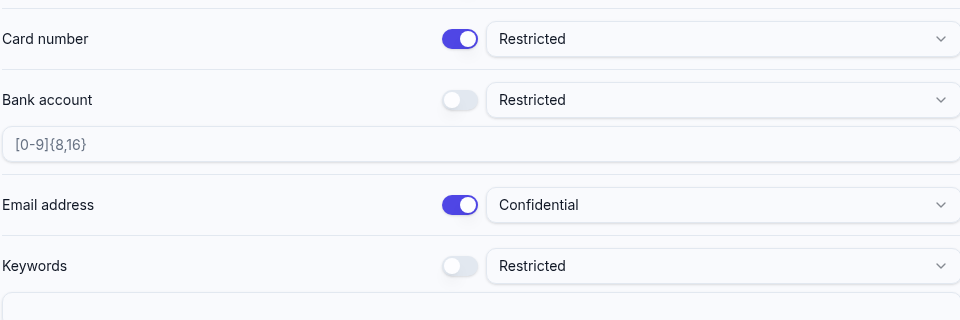
- Enable each needed detector and choose its triggered label. Configure Bank account pattern and Company keywords for your actual formats.
- Choose Black boxes or Last 4 digits only under Masking.
- Review the rights grid and forced-watermark defaults, save and obtain any required approval.
- Check Settings → AI / AI Capture for allowed text disclosure and the configured OCR engine; classification does not override those policies.
Settings → Document Security → Access Policies
Access policies and approved devices
Purpose
Limit access by company hours, office networks and approved browsers.
Steps
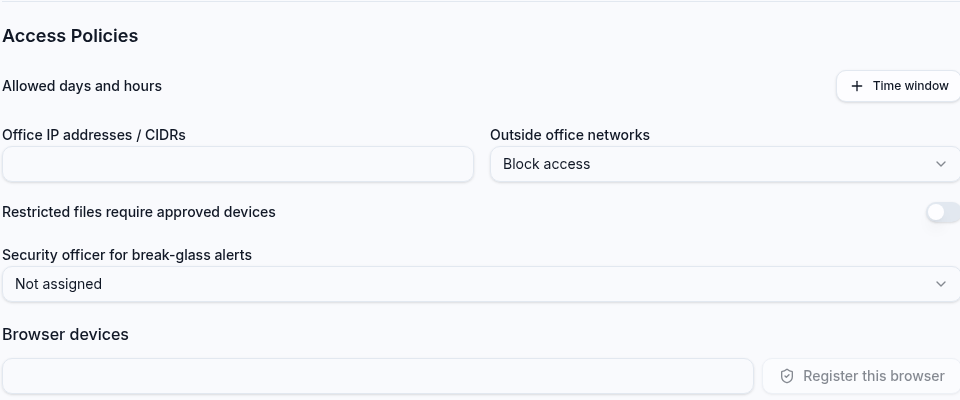
- Add a Time window; choose classification or role, days and allowed start/end times.
- Enter Office IP addresses / CIDRs and choose Block access or Allow view-only outside those networks.
- Enable approved devices for Restricted files when required.
- Enter a Browser device label and select Register this browser. An administrator reviews pending devices and chooses Approve or Revoke.
- Assign the security officer for break-glass alerts; save through the normal approval flow.
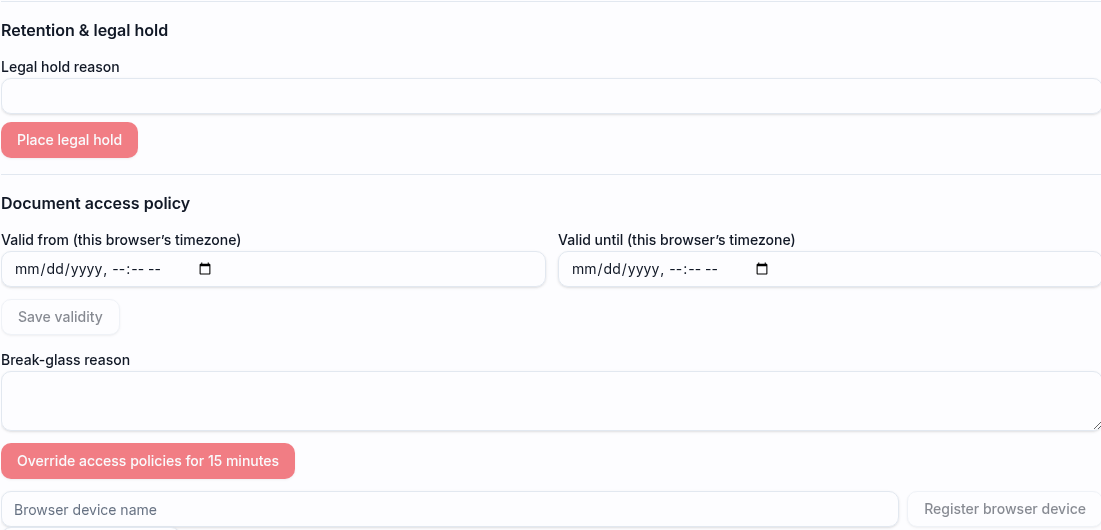
Document → Details → Document access policy
Document validity and audited break-glass
Purpose
Control document validity and record a time-limited emergency exception.
Steps
- Open Details and set Valid from / Valid until where authorised.
- Select Save validity; check the resulting document rule.
- For an authorised emergency, enter a meaningful Break-glass reason.
- Choose Override access policies for 15 minutes only after reviewing the need.
- Review Access history and the security-officer notification after use.
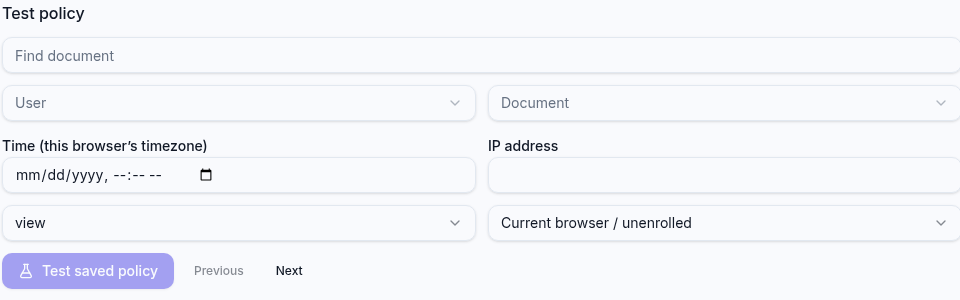
Settings → Document Security → Test policy
Test policy simulator
Purpose
Check an access decision against the saved policy before relying on it.
Steps
- Save and, if necessary, approve the policy first.
- Find the fictional test document; choose Test user and Test document.
- Enter Time (this browser’s timezone), IP address and the requested action.
- Choose the appropriate browser device or Current browser / unenrolled.
- Select Test saved policy; read Allow/Deny, reason and rule. Compare with the equivalent real access conditions.
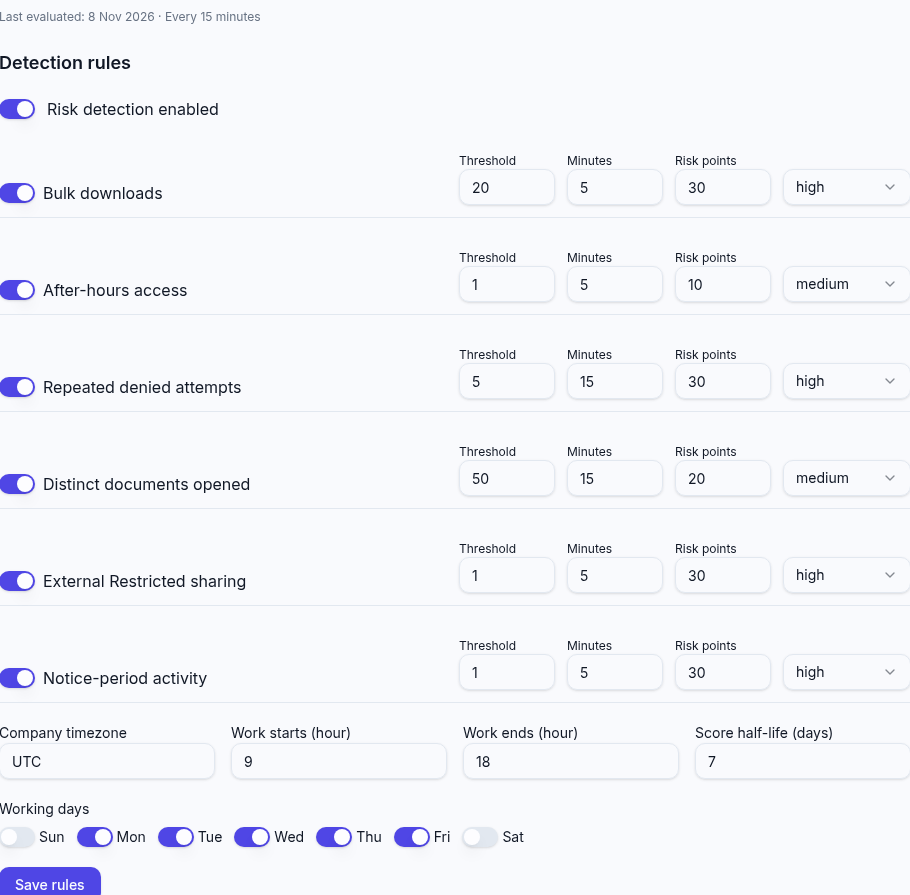
Security Risk Center → Rules & officers
Security Risk Center rules and thresholds
Purpose
Detect suspicious document activity with configurable scoring.
Steps
- Open Security Risk Center as an admin or designated Security Officer.
- As an admin select Rules & officers and enable Risk detection.
- For bulk downloads, after-hours, repeated denials, distinct documents, External Restricted sharing and notice-period activity, set Threshold, Minutes, Risk points and Severity.
- Set risk Company timezone, work hours/days and score half-life.
- Save rules with a reason and obtain any required approval.

Security Risk Center → Rules & officers → Security Officers & notice period
Security officers and notice-period flags
Purpose
Assign reviewers and mark staff whose notice-period activity needs attention.
Steps
- Open Rules & officers as a company administrator.
- In Security Officers & notice period, locate the correct active company member.
- Set Security Officer for an authorised reviewer, or Notice period for the appropriate staff member.
- Complete the configuration reason/approval flow.
- Check the dashboard officer count and review settings when responsibilities change.
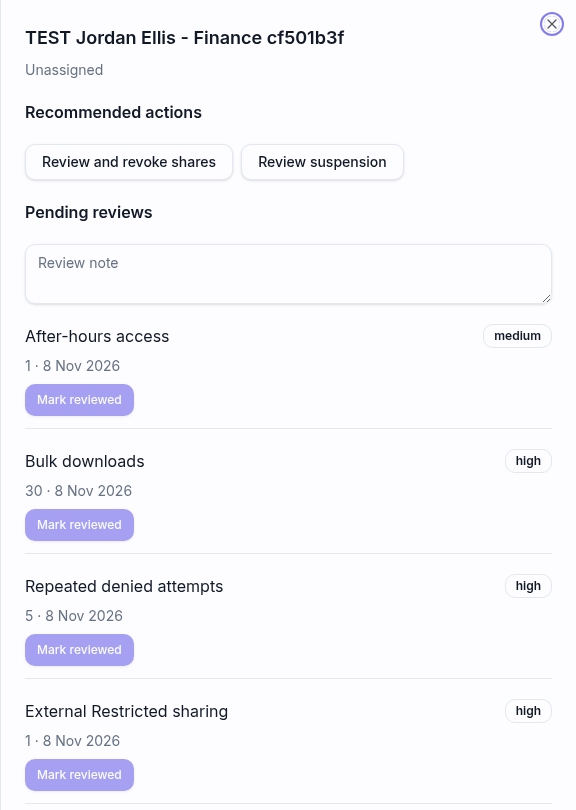
Security Risk Center → user drawer
Review findings and user timelines
Purpose
Investigate allowed/blocked activity and record a reviewed outcome.
Steps
- Filter Findings by status and severity; inspect Top risky users and Findings by department.
- Select a user or finding to open the review drawer.
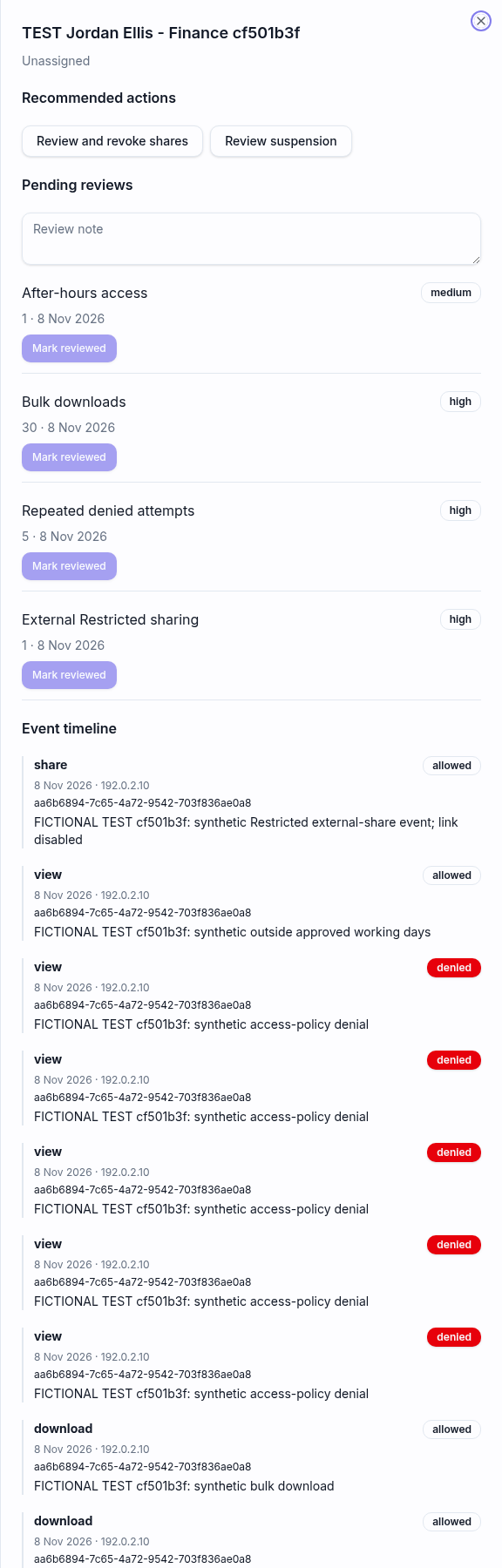
- Read Event timeline and the recorded action, result, time, IP and document reference.
- Enter a Review note and select Mark reviewed on the relevant finding.
- Use Review and revoke shares or Review suspension to open the governed action page; confirm consequential actions there.
Settings → Team → user activation control
User offboarding
Purpose
End company access while handing responsibility to another active member.
Steps
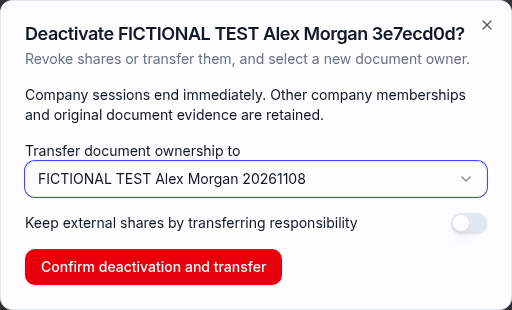
- Locate the intended member in Team and choose their deactivate control.
- In the confirmation dialog choose Transfer document ownership to an eligible active company user.
- Leave Keep external shares by transferring responsibility off to revoke creator shares; turn it on only when the replacement owner should keep responsibility.
- Review the target and choose Confirm deactivation and transfer.
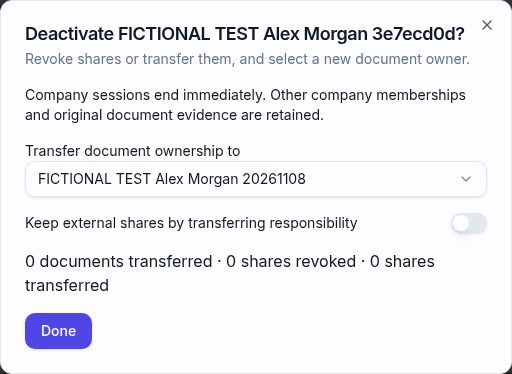
- Read the summary of documents transferred, shares revoked and shares transferred.
Document → Shared externally / Documents → folder
Document and whole-project revocation
Purpose
End external shares and non-owner grants with confirmed scope counts.
Steps
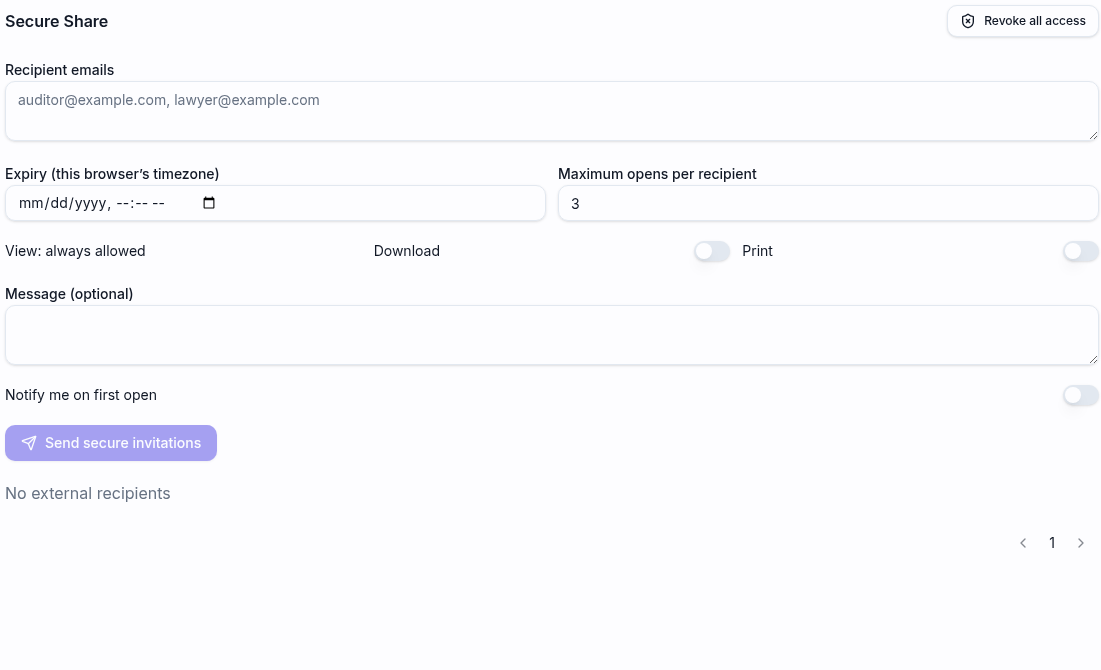
- For one document open Shared externally and select Revoke all access.
- For a project, open its folder in Documents and choose End project access.
- Review documents affected, external shares revoked and direct grants ended; the folder action includes descendants.
- Confirm revocation only after checking scope and counts.
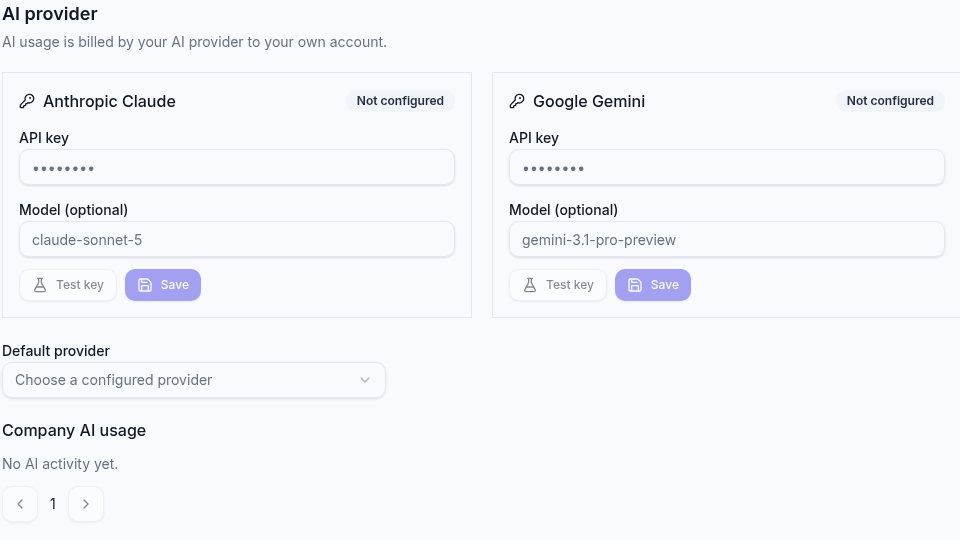
- Review access history and downloaded-copy trace evidence afterward.
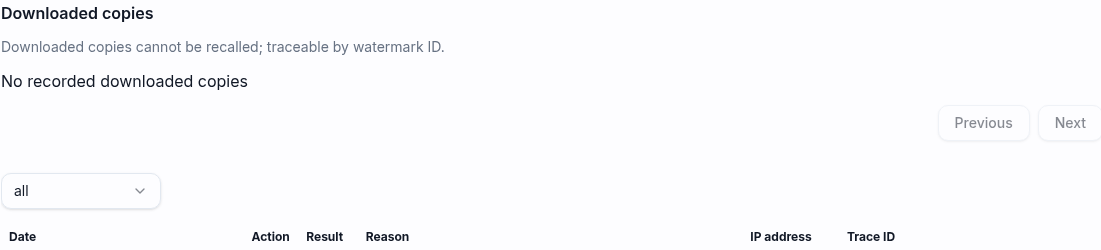
Compliance → Retention / document or folder hold controls
Retention schedules and legal holds
Purpose
Keep records for required periods and stop deletion during a hold.
Steps
- Open Compliance → Retention; name the schedule and choose its category or Retention folder.
- Set years, start event (creation, closure or expiry) and the end action; choose Add schedule and follow approval.
- On a document, open Details → Retention & legal hold; read Retained until and any blocking reason.
- Enter Legal hold reason and choose Place legal hold; confirm. For folder holds use that folder’s hold controls.
- To release a hold, enter a reason and confirm Release legal hold; review retained evidence rather than assuming deletion is now permitted.
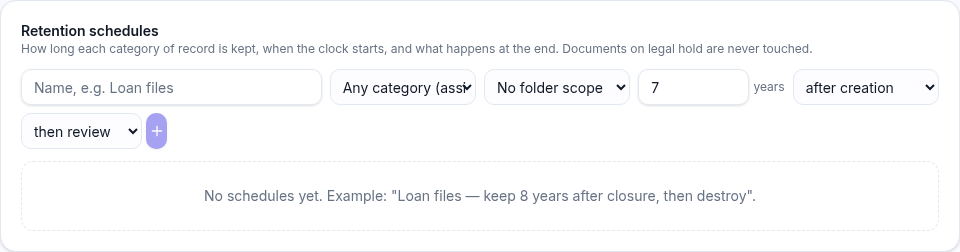
Settings → Security → Archive password / Backup & Restore
Daily encrypted backups and archive password
Purpose
Maintain company-scoped encrypted archives and check actual completion.
Steps
- In Security → Archive password, set or change the password using the requested fresh identity check; keep it securely.
- Open Backup & Restore and check Last successful backup, not just a running job.
- Automatic daily backups require the archive password and must not be excluded for that company. Use Create backup for an authorised manual run.
- Review completed warnings and skipped items; download every ZIP part and the manifest when needed, completing re-authentication.
- Coordinate any full restore with the authorised administrator into an empty company/new environment; never overwrite retained operational data.
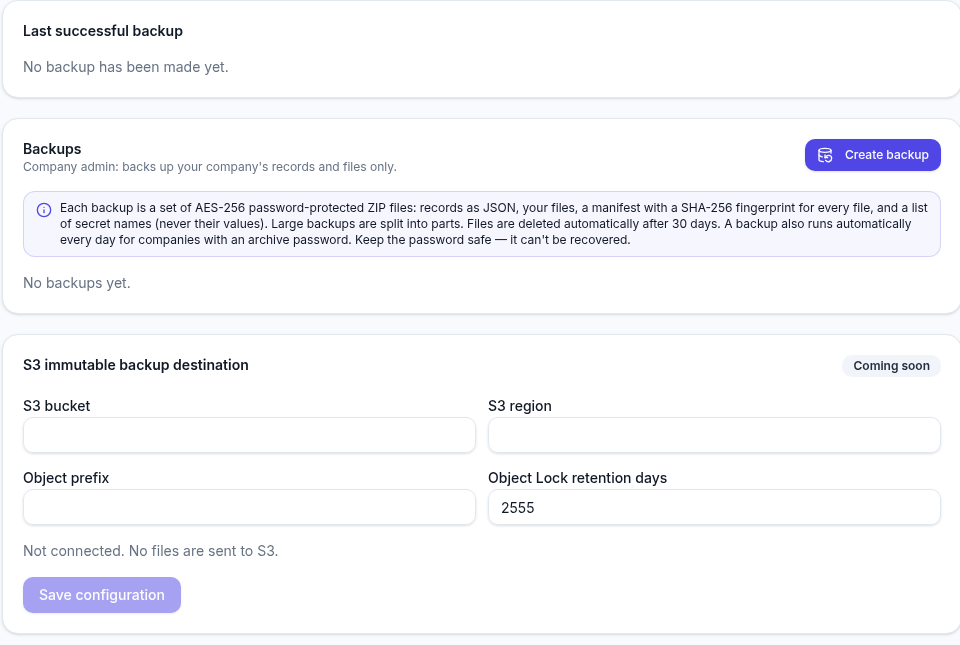
Settings → AI
Own Claude/Gemini keys, testing, governance and usage
Purpose
Use your company’s AI account without exposing stored credentials.
Steps
- In Anthropic Claude or Google Gemini enter your own API key; optionally choose a supported model.
- Select Test key, check the result and Save. Use Replace or Remove later when appropriate.
- Choose a configured Default provider. Stored keys show configuration status, never the key.
- Under AI governance choose permitted modules, Restricted-data rules and external AI/OCR disclosure; save.
- Review Company AI usage by date, feature, provider and tokens. Respond to rate limits or provider-key/model errors before retrying; resume paused jobs only after access is restored.
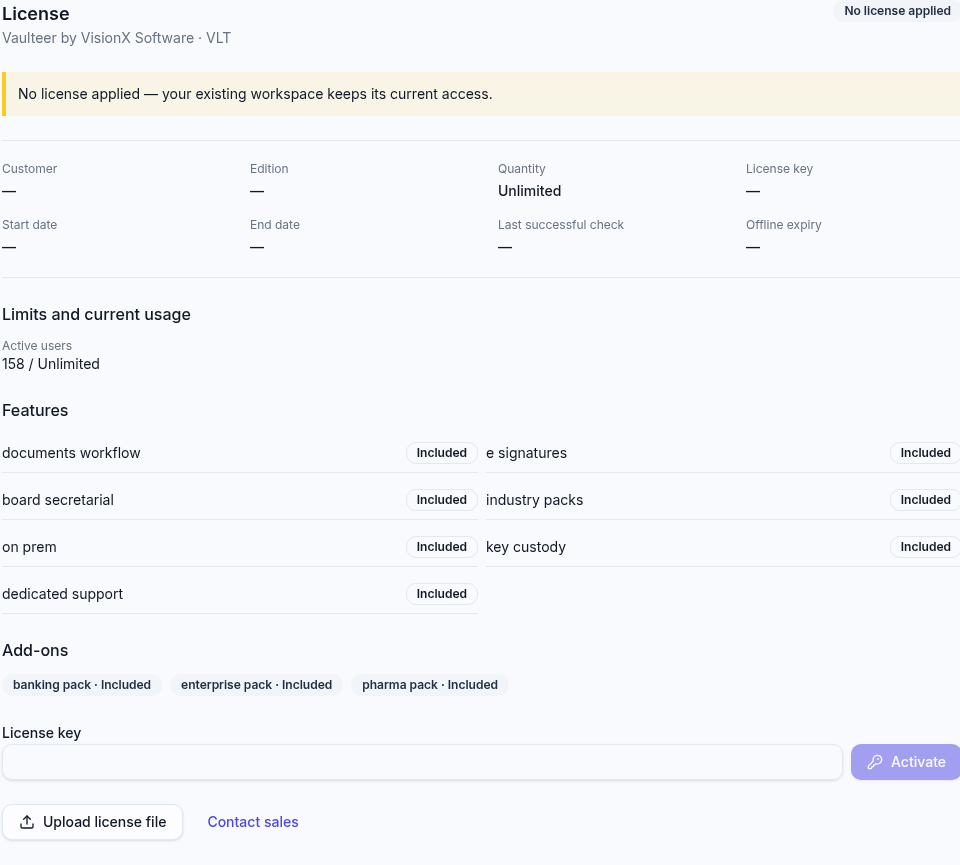
Settings → License
License activation, checks, offline files and editions
Purpose
Apply and inspect a signed VisionX VLT licence without issuing keys locally.
Steps
- As company admin open License and check status, edition, active users and dates.
- Enter the issued License key and select Activate.
- Once a licence exists, use Check now and inspect Last successful check and any safe error.
- For offline activation, choose Upload license file and select the genuine signed file supplied by VisionX.
- Review Features, Add-ons and Limits and current usage. Use Replace key for a newly issued replacement where needed.
My Work → Pending changes
Approve My Work pending changes
Purpose
Have a different authorised administrator check sensitive configuration changes.
Steps
- The maker saves the proposed setting and supplies a meaningful reason in the change-request dialog.
- A different eligible administrator opens My Work → Pending changes.
- Compare Current with Proposed and read the reason before acting.
- Choose Approve, or enter a Decision note and Reject. Makers can Withdraw their own request, not approve it.
- Check Approved and applied; if First approval recorded is shown, obtain the required additional approver.

Settings → SSO / Integrations / audit and export pages
SSO, secure uploads, exports and integrations
Purpose
Understand the additional protections around existing workflows.
Steps
- Review your company’s configured identity provider in SSO; use its approved sign-in route and retain the governed recovery path.
- Upload only permitted content within the relevant screen’s size limit; an extension alone is not sufficient.
- Export only authorised records and review the recorded audit evidence. Spreadsheet exports neutralise formula-like content.
- For email filing, use the configured provider; permitted HEIC/HEIF attachments still require validation.
- Inspect delegated signing, training, approvals and record access through their existing role-restricted screens.