Vaulteer knowledge library
Vaulteer User Guide
Purpose, practical steps and important limits for your daily work.
November 2026 edition · Real fictional Sandbox screenshots · Newly built features await publication; S3 immutable backup is coming soon.
Documents → Preview
Open a document securely
Purpose
Read an authorised document without receiving a permanent file link.
Steps
- Open Documents and select a file you are allowed to view.
- In Preview, wait for the protected viewer to load; use its page and zoom controls when available.
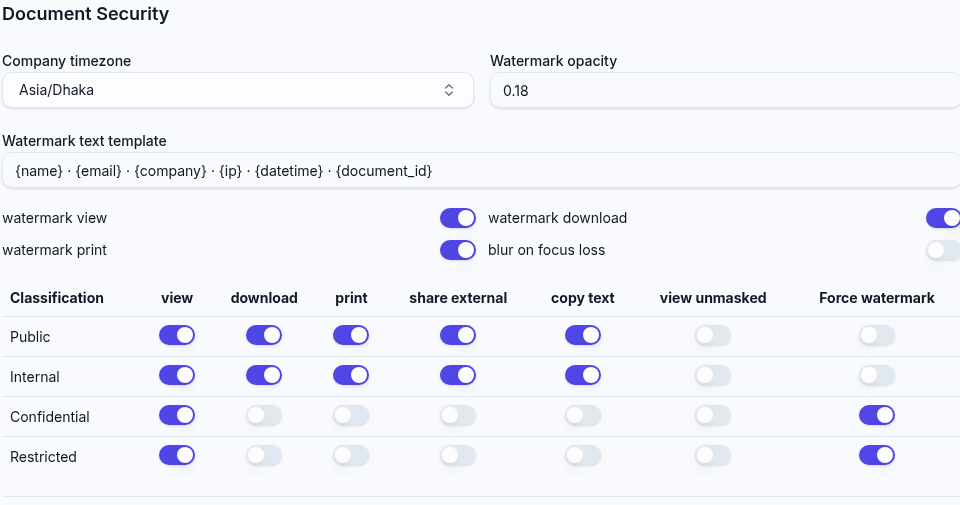
- Look for Protected · watermarked. The tiled watermark identifies the viewer, email, company, IP when available, local company time and document ID.
- Use the document Download or Print action only when permitted. PDF copies are stamped before delivery with a unique trace ID.

Documents → Filter / document classification
Classification labels and masked documents
Purpose
Understand the sensitivity label and why some fields are hidden.
Steps
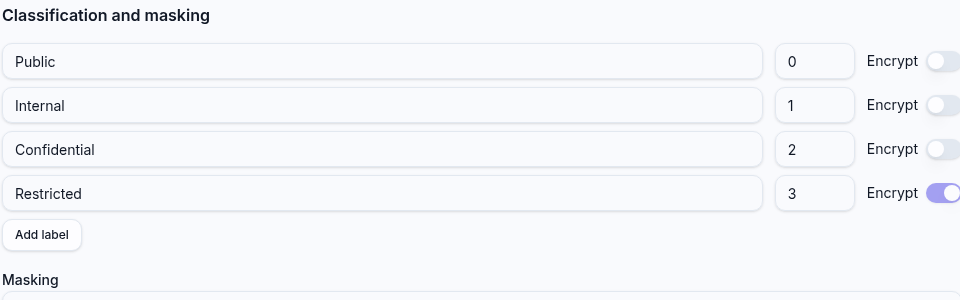
- Check the label on a document before opening or sharing it. Use Filter to narrow documents by classification.
- When uploading, choose the appropriate classification; authorised editors can change it later.
- After text extraction, enabled detectors may raise the classification and require encryption.
- Without view unmasked, detected fields are covered in the prepared rendition, or reduced to their last four digits according to company policy. Downloads use the same protected content.
Document → Shared externally
Send a Secure Share
Purpose
Invite named recipients with limited, traceable access instead of an uncontrolled attachment.
Steps
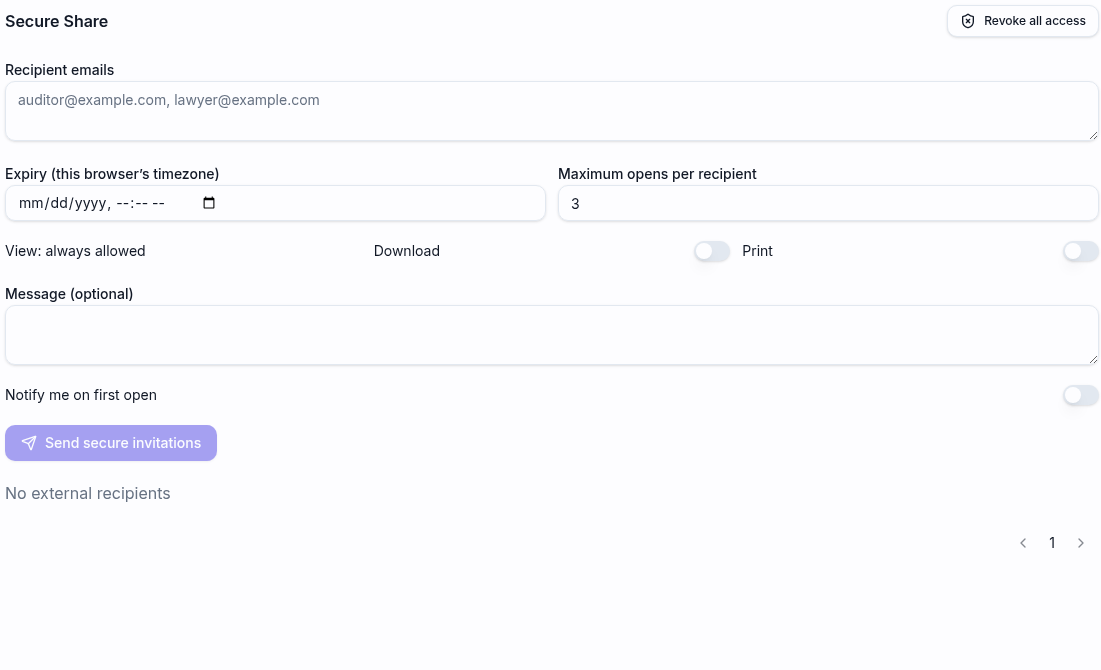
- Open Shared externally and check you have external-share rights.
- Enter recipient email addresses; verify every address before sending.
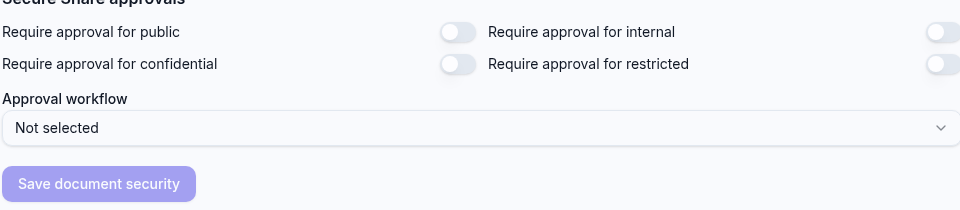
- Set Expiry and Maximum opens per recipient; choose Download and Print if needed. View is always included.
- Add a message and optionally enable Notify me on first open.
- Select Send secure invitations. If classification requires approval, wait for the selected workflow to complete before access is released.
Invitation → Vaulteer recipient portal
Recipient email verification
Purpose
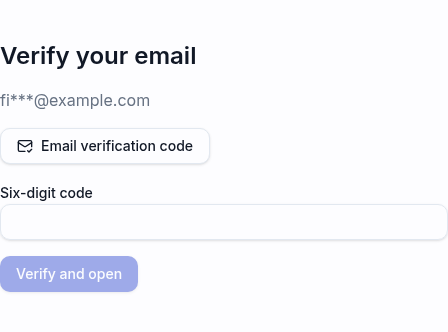
Confirm control of the invited inbox before opening a shared document.
Steps
- Open the invitation link in the invited recipient’s browser.
- On Verify your email, choose Email verification code.
- Read the six-digit code in that inbox and enter it in Six-digit code.
- Choose Verify and open. Use Download or Print only if the sender granted those rights.
- If the page says Share expired, Share revoked or Open-limit reached, ask the sender for reviewed access.
Document → Shared externally
Track, revoke and recover a wrong-recipient share
Purpose
See who has access and stop a link immediately when it is no longer appropriate.
Steps
- Return to Shared externally after invitations have been sent.
- Review each recipient’s status, opens, last access and IP.
- Select Revoke to end one recipient link; review the counts and confirm.
- If an address was wrong, use Sent to wrong person and confirm. This also notifies the owner and records a security incident.
- Check the list again to confirm the revised status.
Document → Access history
Access history and downloaded copies
Purpose
Review allowed and denied activity and identify already-issued copies.
Steps
- Open the document and select Access history.
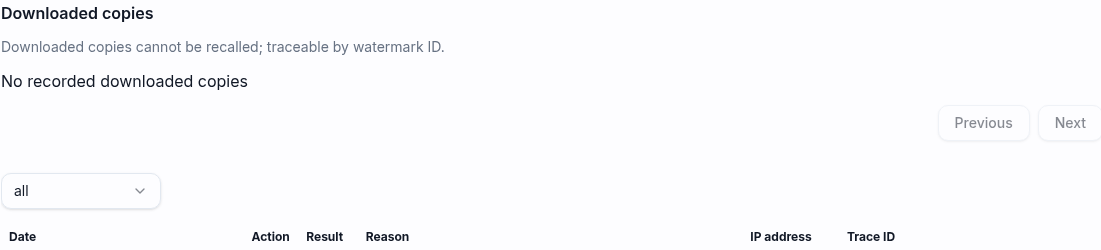
- Read Downloaded copies for the user/recipient, download time and watermark trace ID when recorded.
- Use the action filter and page controls to review access events.
- For a denied event, read its specific rule/reason. Match a downloaded PDF’s trace ID to the recorded event when investigating.
Document → Versions
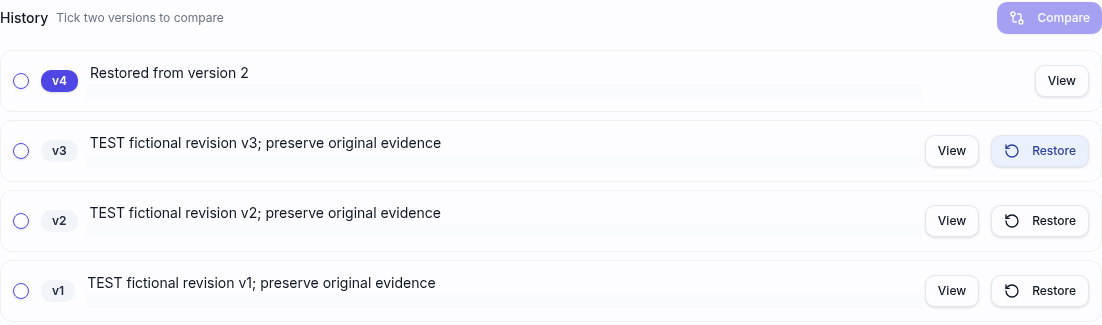
Version history and non-destructive restore
Purpose
Keep earlier evidence while updating or restoring content.
Steps
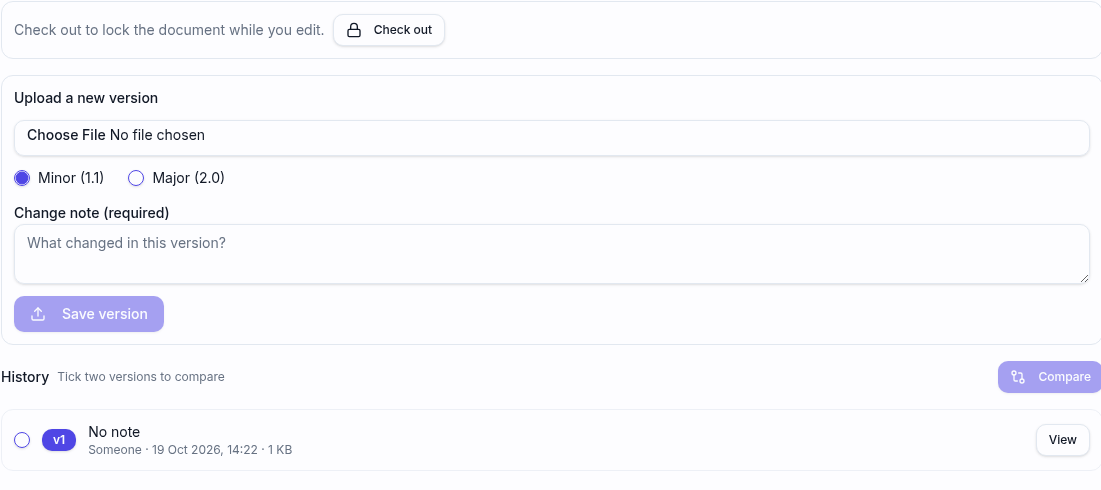
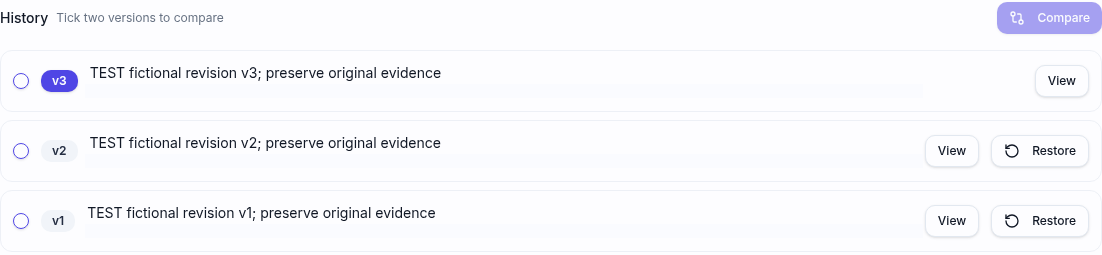
- Open Versions and review each entry’s version, change note, author, time and size.
- Choose View to inspect an older version.
- For a re-upload, choose a file, minor/major change and a meaningful Change note, then Save version. Check out first where editing requires it.
- To restore an eligible older entry, select Restore and confirm that it will become a new version.
- Verify the newly appended version in History; earlier versions remain.
Documents → Trash
Recover from the recycle bin
Purpose
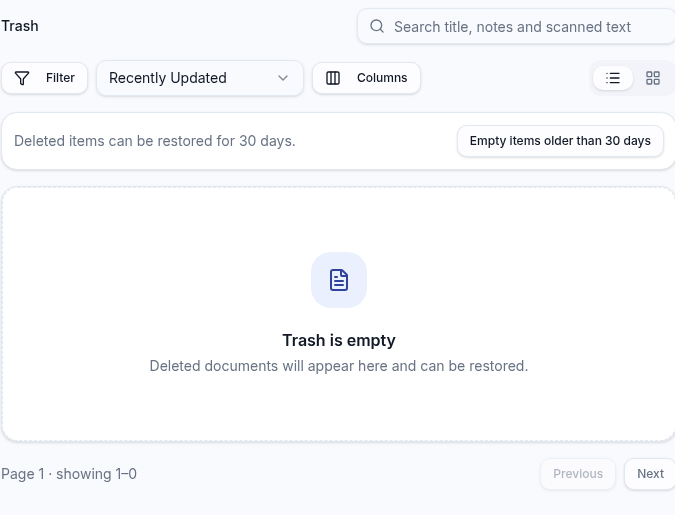
Find soft-deleted documents and restore them while retained.
Steps
- Select Trash in Documents.
- Find the deleted document and open its action menu.
- Choose Restore to return an eligible document to active use.
- Ask an administrator about permanent deletion; it requires fresh authenticator or email-code confirmation and must satisfy retention and hold rules.

Sign in / My Work / Documents
Sign-in, approvals, signatures and finding work
Purpose
Continue everyday work with the existing access safeguards.
Steps
- Sign in using your approved company method and complete the requested second factor.
- Use search to find records your permissions allow; inspect the source before using AI answers.
- In My Work, open assigned work, review evidence and record your decision/comment.
- For signatures, use the configured signing flow and check the completion evidence.
- In Settings review your own security/session options and notifications.